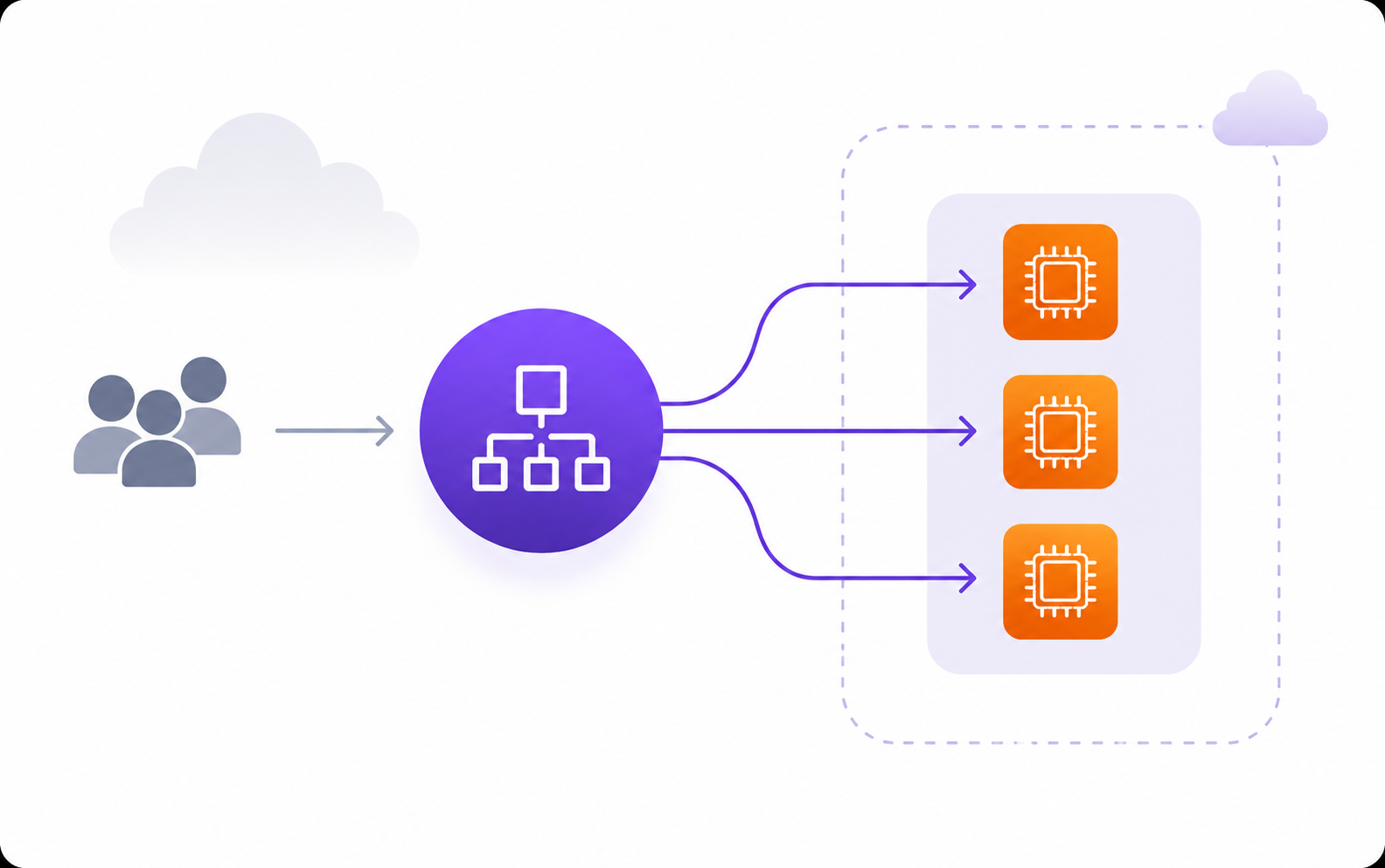
An Application Load Balancer operates at Layer 7 — the HTTP layer. Unlike a classic load balancer which distributes traffic purely based on connection-level information, an ALB understands HTTP. It can read the request path, inspect headers, evaluate query strings, and make routing decisions based on what is actually in the request. That is what makes it the right choice for almost every web application workload on AWS.
At its core, an ALB has three components: the load balancer itself, which accepts incoming traffic; listeners, which define which port and protocol to accept on; and target groups, which are the collection of instances or services that traffic gets forwarded to. A listener rule connects the two — it looks at an incoming request and decides which target group should receive it.
What We Are Building
A company runs a Node.js web application with two separate services behind a single domain. The main application handles customer-facing requests on port 3000. A separate admin service handles internal dashboard traffic on port 8080. Both run on EC2 instances spread across two availability zones in private subnets. The ALB sits in public subnets and routes traffic based on path — requests to /admin go to the admin service, everything else goes to the main application.
This is a common and practical architecture. The EC2 instances never need public IP addresses. The ALB is the only thing exposed to the internet, and it controls what reaches the backend entirely through listener rules.
Security Groups First
Before creating anything else, the security groups need to be in the right shape. Two security groups are needed: one for the ALB and one for the EC2 instances. They work together — the EC2 security group allows inbound traffic only from the ALB’s security group, not from the internet directly.
# Security group for the ALB — accepts HTTP and HTTPS from the internet aws ec2 create-security-group \ --group-name alb-sg \ --description "Security group for application load balancer" \ --vpc-id vpc-1a2b3c4d aws ec2 authorize-security-group-ingress \ --group-id sg-alb123 \ --protocol tcp --port 80 --cidr 0.0.0.0/0 aws ec2 authorize-security-group-ingress \ --group-id sg-alb123 \ --protocol tcp --port 443 --cidr 0.0.0.0/0# Security group for EC2 instances — accepts traffic only from the ALB aws ec2 create-security-group \ --group-name app-sg \ --description "Security group for application instances" \ --vpc-id vpc-1a2b3c4d # Allow port 3000 from ALB security group only aws ec2 authorize-security-group-ingress \ --group-id sg-app456 \ --protocol tcp --port 3000 \ --source-group sg-alb123 # Allow port 8080 from ALB security group only aws ec2 authorize-security-group-ingress \ --group-id sg-app456 \ --protocol tcp --port 8080 \ --source-group sg-alb123Using the ALB’s security group as the source rather than a CIDR range means that even if the CIDR range of your VPC changes or expands, this rule does not need to be updated. More importantly, it guarantees that traffic can only reach the instances if it came through the ALB. If someone finds the instance’s private IP and tries to reach it directly from within the VPC, the security group blocks them too.
Creating the Load Balancer
The ALB needs to be placed in at least two public subnets in different availability zones. This is a hard requirement — creating an ALB with subnets in the same availability zone will fail. The two-subnet minimum is also what gives the ALB its availability guarantee: if one zone has an outage, the ALB keeps routing through the other zone automatically.
aws elbv2 create-load-balancer \ --name app-alb \ --type application \ --scheme internet-facing \ --subnets subnet-pub-1a subnet-pub-1b \ --security-groups sg-alb123Note the ARN in the response — it is needed for every subsequent step. The ALB also gets a DNS name like app-alb-123456789.us-east-1.elb.amazonaws.com which is what your DNS record should point to. ALBs never have static IP addresses, so you always use the DNS name, never an IP.
If you try to create the ALB with both subnets in the same availability zone, the CLI returns an error immediately. The same error appears if the subnets are not in the same VPC as the security group. Both of these are checked at creation time rather than at runtime, which makes them easier to catch.
Creating Target Groups
Two target groups are needed — one for the main application, one for the admin service. Each target group is independently configured with its own health check, port, and protocol.
# Target group for the main application — port 3000 aws elbv2 create-target-group \ --name app-targets \ --protocol HTTP \ --port 3000 \ --vpc-id vpc-1a2b3c4d \ --target-type instance \ --health-check-path /health \ --health-check-interval-seconds 30 \ --healthy-threshold-count 2 \ --unhealthy-threshold-count 3# Target group for the admin service — port 8080 aws elbv2 create-target-group \ --name admin-targets \ --protocol HTTP \ --port 8080 \ --vpc-id vpc-1a2b3c4d \ --target-type instance \ --health-check-path /health \ --health-check-interval-seconds 30 \ --healthy-threshold-count 2 \ --unhealthy-threshold-count 3The --health-check-path is what the ALB requests from your instances to decide whether they are healthy. This path must return an HTTP 200. The default success code is 200, but you can configure a range anywhere between 200 and 499 if your application returns a different status code on its health endpoint.
A mistake that happens frequently: the health check path is set to /health but the application has not actually implemented that route. The instances register with the target group, the ALB starts sending health checks to /health, the application returns a 404, and the ALB marks every target as unhealthy. No traffic gets routed anywhere. The load balancer appears to be working — it is provisioned, it has targets registered — but every request returns a 502 because there are no healthy targets to forward to. Always confirm the health check path exists and returns a 200 before registering instances.
Registering Targets
With the target groups created, register the EC2 instances into each one. Instances can be registered by instance ID or by IP address. Using instance ID is simpler for EC2-backed workloads.
aws elbv2 register-targets \ --target-group-arn arn:aws:elasticloadbalancing:us-east-1:123456789012:targetgroup/app-targets/abc123 \ --targets Id=i-0123abc456def,Port=3000 Id=i-0456def789ghi,Port=3000 aws elbv2 register-targets \ --target-group-arn arn:aws:elasticloadbalancing:us-east-1:123456789012:targetgroup/admin-targets/def456 \ --targets Id=i-0123abc456def,Port=8080 Id=i-0456def789ghi,Port=8080After registration, the targets enter an initial state while the ALB runs the first round of health checks. They will not receive traffic until they pass the number of consecutive health checks defined by --healthy-threshold-count. With a threshold of 2 and an interval of 30 seconds, a newly registered instance takes at least 60 seconds before it starts receiving traffic. Factor this into deployment timings — if your deployment automation registers targets and then immediately checks whether the application is live, it will almost certainly see no traffic for the first minute.
Creating Listeners and Routing Rules
A listener on port 80 should redirect all traffic to HTTPS rather than serving HTTP directly. A listener on port 443 handles the actual routing.
# Port 80 listener — redirect everything to HTTPS aws elbv2 create-listener \ --load-balancer-arn arn:aws:elasticloadbalancing:us-east-1:123456789012:loadbalancer/app/app-alb/abc123 \ --protocol HTTP \ --port 80 \ --default-actions '[{ "Type": "redirect", "RedirectConfig": { "Protocol": "HTTPS", "Port": "443", "StatusCode": "HTTP_301" } }]'# Port 443 listener — routes to app target group by default aws elbv2 create-listener \ --load-balancer-arn arn:aws:elasticloadbalancing:us-east-1:123456789012:loadbalancer/app/app-alb/abc123 \ --protocol HTTPS \ --port 443 \ --certificates CertificateArn=arn:aws:acm:us-east-1:123456789012:certificate/abc123 \ --default-actions '[{ "Type": "forward", "TargetGroupArn": "arn:aws:elasticloadbalancing:us-east-1:123456789012:targetgroup/app-targets/abc123" }]'Now add a path-based rule that routes /admin* to the admin target group. Listener rules are evaluated in priority order — lower numbers are evaluated first. The default action defined above acts as a catch-all and fires only when no rule matches.
aws elbv2 create-rule \ --listener-arn arn:aws:elasticloadbalancing:us-east-1:123456789012:listener/app/app-alb/abc123/listener456 \ --priority 10 \ --conditions '[{ "Field": "path-pattern", "Values": ["/admin*"] }]' \ --actions '[{ "Type": "forward", "TargetGroupArn": "arn:aws:elasticloadbalancing:us-east-1:123456789012:targetgroup/admin-targets/def456" }]'If two rules share the same priority number, the CLI returns an error and neither rule is created. Priority values do not need to be sequential — leaving gaps between them (10, 20, 30 rather than 1, 2, 3) makes it easier to insert new rules later without reordering everything.
Verifying the Setup
Check the health of registered targets before sending any real traffic:
aws elbv2 describe-target-health \ --target-group-arn arn:aws:elasticloadbalancing:us-east-1:123456789012:targetgroup/app-targets/abc123The output shows a State field for each target: healthy, unhealthy, initial, or unused. If any target is unhealthy, the output also includes a Reason field that tells you whether the failure originated on the load balancer side (Elb.* reason codes) or the target side (Target.* reason codes). A Target.ResponseCodeMismatch means the health check endpoint is reachable but returning the wrong status code. A Target.ConnectionError means the ALB cannot reach the instance at all — usually a security group misconfiguration.
Final Thoughts
The most common failure patterns with an ALB are all variations of the same two problems: security group rules that do not allow the right traffic through, and health check paths that do not exist or return unexpected status codes. Both produce the same symptom — a 502 from the load balancer — and both are straightforward to diagnose once you know to look at target health first rather than the application logs.
- ALB requires at least two subnets in different availability zones — same-AZ subnets fail at creation
- EC2 security groups must allow inbound traffic from the ALB security group, not from a CIDR
- Health check paths must exist and return a 200 before any target receives traffic
- Newly registered targets take at least one full health check cycle before going live
- Listener rules with duplicate priority numbers fail — leave gaps between priority values
An ALB that is routing correctly is invisible — traffic flows, instances receive requests, users never think about it. The work is in the setup: getting security groups right, health checks right, and listener rules right before the first request arrives.